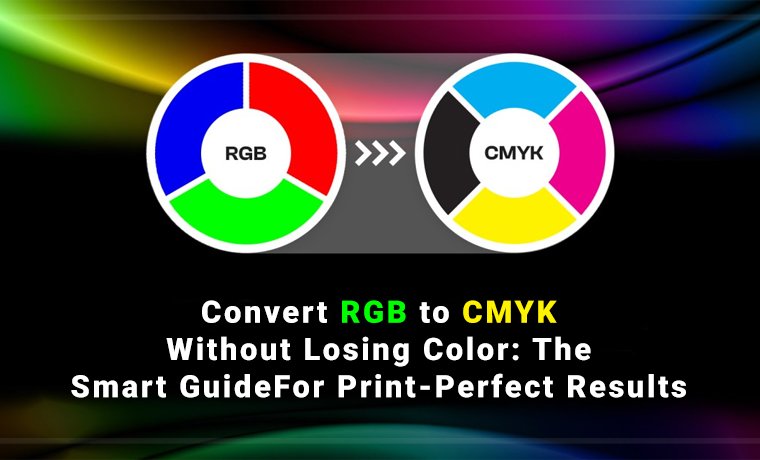
Convert RGB to CMYK Without Losing Color: The Smart Guide For Print-Perfect Results
September 30, 2026
You spent hours perfecting your design on screen. The colors are strong. The blues are electric. The reds are bold. Then you send it to the printer, and what comes back looks flat, dull, and nothing like what you created. Sound familiar? This is the most common frustration in print design, and it all comes down to one thing: the difference between RGB and CMYK.
Your screen uses light to create color (RGB). Your printer uses ink (CMYK). These two systems don't speak the same language, and that gap is why colors shift. The good news? The shift is preventable. If you're wondering whether I need to convert RGB to CMYK for printing, looking for the best way to convert RGB to CMYK, or trying to figure out how to print bright colors in CMYK without losing vibrancy, this guide has every answer you need.
Fact: According to a 2024 Printing Industries of America report, over 68% of print buyers cite color accuracy as their top concern in packaging projects, making proper RGB-to-CMYK conversion more important than ever for brand credibility.
Read on, and let's make sure your printed colors finally match your vision.
Understanding RGB vs CMYK
Before going into the depths of the main topic, let us first understand what RGB and CMYK are and why color changes on custom boxes, brochures, business cards, and more during a shift:
What Is RGB?
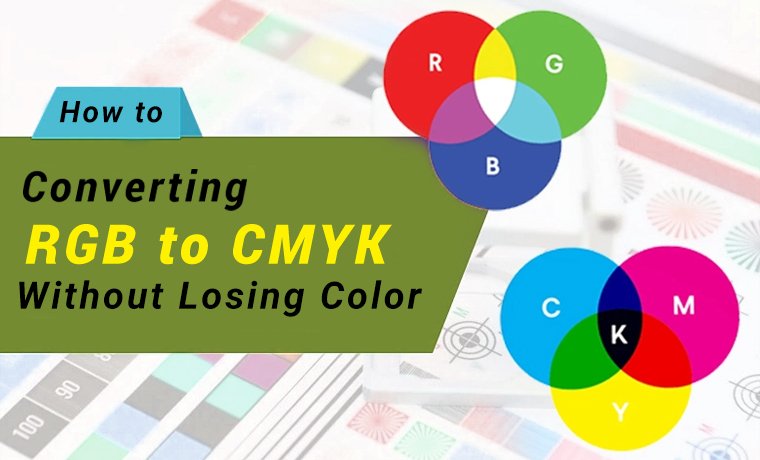
RGB is the acronym for Red, Green, and Blue. It is an additive colour model and deals with light. All the colours that are seen on the screen of your monitor, TV, or camera are a mixture of red, green, and blue light. Mix the three at 100% strength, and you will have pure white. This model is more colourful than print can produce, as it can accommodate much more colour than print can.
What Is CMYK?
CMYK is an acronym for the four basic colors: Cyan, Magenta, Yellow, and Key (Black). This is a subtractive colour model, suitable for printing with ink on paper. This 4-color system is used by professional offset and digital printers. It is also known as "Four-Color Process" or "Full-Color Printing" since it is a process that produces a full color spectrum by mixing four inks in various proportions. The first step to achieving the correct colours in the print is to comprehend the difference between CMYK and RGB printing.
Why Do The Colors Change During The Conversion?
RGB has a much larger color gamut than CMYK. Colors such as dark blues, neon greens, and bright reds can change dramatically following conversion. The answer is easy: some colours are mathematically “out of gamut” for CMYK – there is no set of inks mathematically able to create the colours that it can. This is not a 1:1 mapping and therefore any conversion has to be done in a compromising way.
The Necessary Preparation Steps
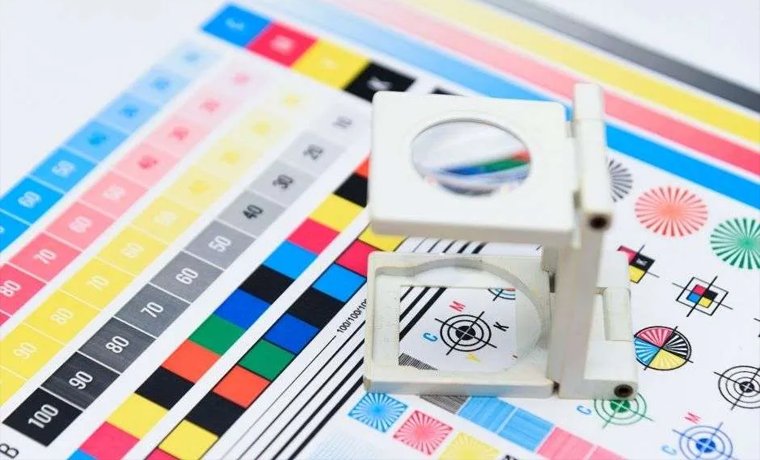
These steps are paramount for converting RGB and CMYK without losing the consistency of the colors:
Use CMYK Mode (Best Practice)
The easiest thing to do to prevent color shock is to create your design in CMYK colors. It means that there are no surprises if the designer is designing packaging, labeling, or any other print product. It also smooths the workflow - no corrections at the last minute before going to the press.
Calibrate Your Monitor
If you want to convert the numbers to be meaningful, your screen must be accurate. Properly profile your monitor with hardware calibration devices like X-Rite i1Display or Datacolor Spyder. If you do not do this, the image you get on the screen will be different from the image you receive from the printer (even if you convert the images correctly).
Select the correct ICC/Color Profile
There are variations in CMYK, so choose a working space that reflects your output. These profiles are used to map colors for a particular set of inks, paper, and printing process, and they are essential for accuracy.
Use High-Resolution Images
Low-resolution files cause colour issues when printed on custom shape boxes. Make sure to work with 300 DPI or more! A fuzzy, pixelated image will be even fuzzier and grungier once you convert it to colour. The more data you have, the more accurate your conversion tool will be.
Pre-Conversion Color Adjustments
Any overly bright and colorful RGB colors should be toned down before conversion to become more in line with the printable CMYK range. To soften extreme blues and greens, use Curves or Hue/Saturation adjustments. This will minimize "shock" on conversion and provide more consistent and predictable results.
How to Convert RGB to CMYK Without Losing Color
In this section, you’ll learn how to convert RGB to CMYK without losing colors, step-by-step.
Proper Set-up
- Start your design in CMYK mode if possible
- Have the images in high resolution (300 DPI or more)
- Ensure that colours are accurate when previewed on the screen.
- Ask your print vendor to provide you with the ICC profile.
Read More: In-Depth Guide to CMYK Printing: Explore More
Convert With The Suitable Tool
It's important to use the right tool. A quick piece of advice about what you can choose:
| Tools | How to Convert | Notes |
| Adobe Photoshop | Edit > Convert to Profile > Choose CMYK profile | Best for photos & raster images |
| Adobe Illustrator | File > Document Color Mode > CMYK | Best for logos & vector files |
| Adobe InDesign | Set CMYK working space in Color Settings | Best for multi-page layouts |
| GIMP / Affinity Designer | Image > Mode > CMYK (GIMP); Document Setup (Affinity) | Free or affordable alternatives |
| Online RGB to CMYK image converter | Upload image, select output profile, download | Quick option — limited control over profiles |
How to Change RGB to CMYK in Photoshop
Are you wondering “ how to change RGB to CMYK in Photoshop?" When working with a file type such as a raster image, it's important to know how to convert RGB to CMYK in Photoshop without changing colors. Follow these steps:
- Open an image in Photoshop.
- Select Edit > Color Settings > your CMYK profile (U.S. Web Coated SWOP v2, for example).
- Select the profile you want to convert to from the list. 5. Click Edit > Convert to Profile.
- In the Destination Space drop-down, choose your CMYK profile.
This is one of the best ways to convert RGB to CMYK.
How to Convert in Illustrator
If you have vector graphics for retail boxes, there is only one simple trick to know how to convert RGB to CMYK in Illustrator without changing colors: Edit > Edit Colors > Convert to CMYK, not Edit > Document Color Mode.
This means that you can process the color of each object one at a time, and thus have greater control - and fewer surprises.
Choose the Right Rendering Intent
Now is the time for selecting the Correct Rendering Intent (CRI). Rendering intent is a parameter used when converting colors that are outside the gamut.
- Perceptual: Ideal for photos; adjusts all colours appropriately to fit within the CMYK gamut
- Relative Colorimetric: Most suitable for logos or brand colours: clips colours outside of the gamut to the closest colour possible to be printed.
- Saturation: Most appropriate for charts and illustrations, intense color over accuracy
- Absolute Colorimetric: Not commonly used, matches the white point of the source media.
Correct Colours After Converting
When converted, review your file for accuracy. If you're looking to give it a bit of vibrancy, use Curves or Selective Color in Photoshop. To achieve the best results with the colour match of a particular brand, you must use a Pantone (PMS) swatch, which leads us to our next section.
BONUS: Reds, blues, and greens are the colors that are converted most poorly, so be sure to pay special attention to these colors when it comes to e-commerce packaging.
Check the Printout
Lastly, simulate in Photoshop or Illustrator to see how the colors will look once printed: View > Proof Colors. With big jobs, always print a test sheet prior to running the entire job. Also, save your final file as PDF/X-1a or PDF/X-4, the standard for print-ready files.
Tips To Minimize Colour Loss In Conversion
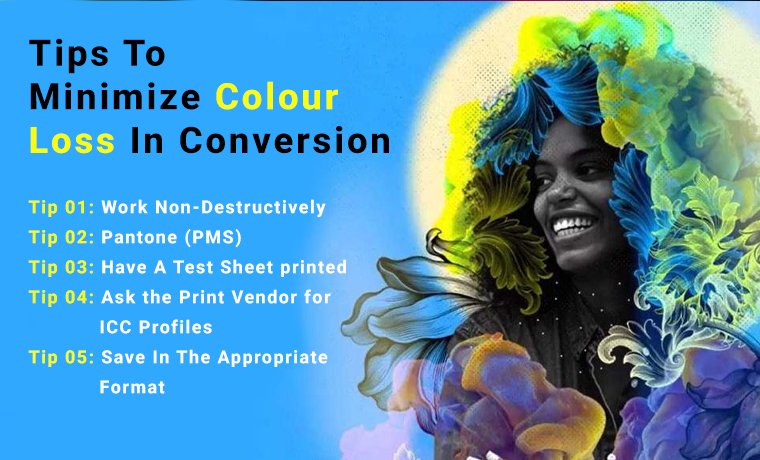
One of the most common complaints in packaging, printing, and graphic design! Well, a mismatch between RGB and CMYK color modes is typically the issue! You may avoid expensive reprints, disgruntled consumers, and inconsistent branding by knowing how to convert RGB to CMYK while not degrading color.
Tip 01: Work Non-Destructively
Never work on the original files; always work on duplicate layers or duplicate files. That way, you can compare results, tweak things back and forth, and go back to your source material without any changes. Remember, at the heart of professional pre-press workflow is a non-destructive workflow.
Tip 02: Pantone (PMS) for Brand Colors
If the colour must match exactly, convert RGB to PMS colour. PMS colors are predesigned and standardized colors that are used for consistency in the brand. They are particularly useful for packaging purposes because your brand colour should be the same on a box, bag, or label.
Tip 03: Have A Test Sheet printed
If you are printing in large quantities, be sure to run a test print first. Add colour swatches with various percentages of C, M, Y, and K, and compare to determine the best match. Eventually, make adjustments to your design file before full production. This may save much time and expense.
Tip 04: Ask the Print Vendor for ICC Profiles
The outcome will vary depending on the printer, ink, and substrate. Request the ICC profile from your vendor, and apply it to the color settings in your design program. This one step can be crucial in minimizing the difference between the screen proof and the final printed holiday packaging.
Tip 05: Save In The Appropriate Format
Save as PDF/X-1a or PDF/X-4 native PDF format with embedded color profiles. These are the expert requirements for submissions of items in print. Don't use JPEG for final print files - lossy format discards color information and resolution with each save.
Final Remarks
Don't fret if your favorite colors end up being lost when converting from RGB to CMYK. You can maintain color accuracy throughout the workflow with the proper setup: calibrated monitor, accurate ICC profile, and smart pre-conversion adjustments. The basics of any program (Photoshop, Illustrator, or online) are the same: know the color spaces, plan your work carefully, convert accurately, and always proofread before printing.
We have helped hundreds of brands to achieve print-perfect colors on packaging, print labels, and boxes at Custom Product Packaging. All files are checked by our pre-press team for colour problems before going to press. Do you have colors ready to be printed that appear as good on paper as they do on screen? Call Custom Product Packaging at +1(888)-511-0592, and our packaging specialists will be glad to assist you in achieving perfect print results the first time.